Markup tools
Every draw, annotate and navigate tool — what it draws, how it is edited afterwards, and the style properties they share.
Tools are activated by a bare letter or from the ribbon. Esc (or V) always returns to Select. Tools never mutate the scene directly — every change goes through the command bus, so undo and redo cover all of them uniformly.
Select and navigate#
| Tool | Key | Does |
|---|---|---|
| Select | Esc / V | Pick, move, resize with eight handles, rotate with the rotation grip |
| Pan | H | Drag the page. Also Space-drag or middle-mouse drag from any tool |
| Zoom | Z | Click to zoom in, Alt-click to zoom out, drag a box to zoom to it |
| Text Select | K | Select and copy the PDF's own text through the text layer |
Marquee select distinguishes window from crossing by drag direction, the same convention as CAD: left-to-right selects only what is entirely inside, right-to-left selects anything touched.
Zooming is cursor-anchored — the point under the cursor stays under the cursor — and deep zoom re-renders the visible region sharper rather than scaling a stale bitmap.
Draw tools#
| Tool | Key | Notes |
|---|---|---|
| Line | L | Straight segment, with arrowheads available on either end |
| Arrow | A | Multi-bend, multi-head |
| Rectangle | R | |
| Ellipse | E | Rotatable centre-and-two-axes |
| Circle | C | |
| Polyline | P | Open chain of segments |
| Polygon | G | Closed shape |
| Arc | — | Three-point arc |
| Pen | N | Freehand ink |
| Arch | H (ribbon) | Architectural arc form |
| Triangle | Shift+T |
All of them share the same style model: stroke colour and width, fill (including none), opacity, dash pattern with a dash scale, arrowheads, and a rotation grip. Line styles include revision-cloud, which turns any path into a cloud.
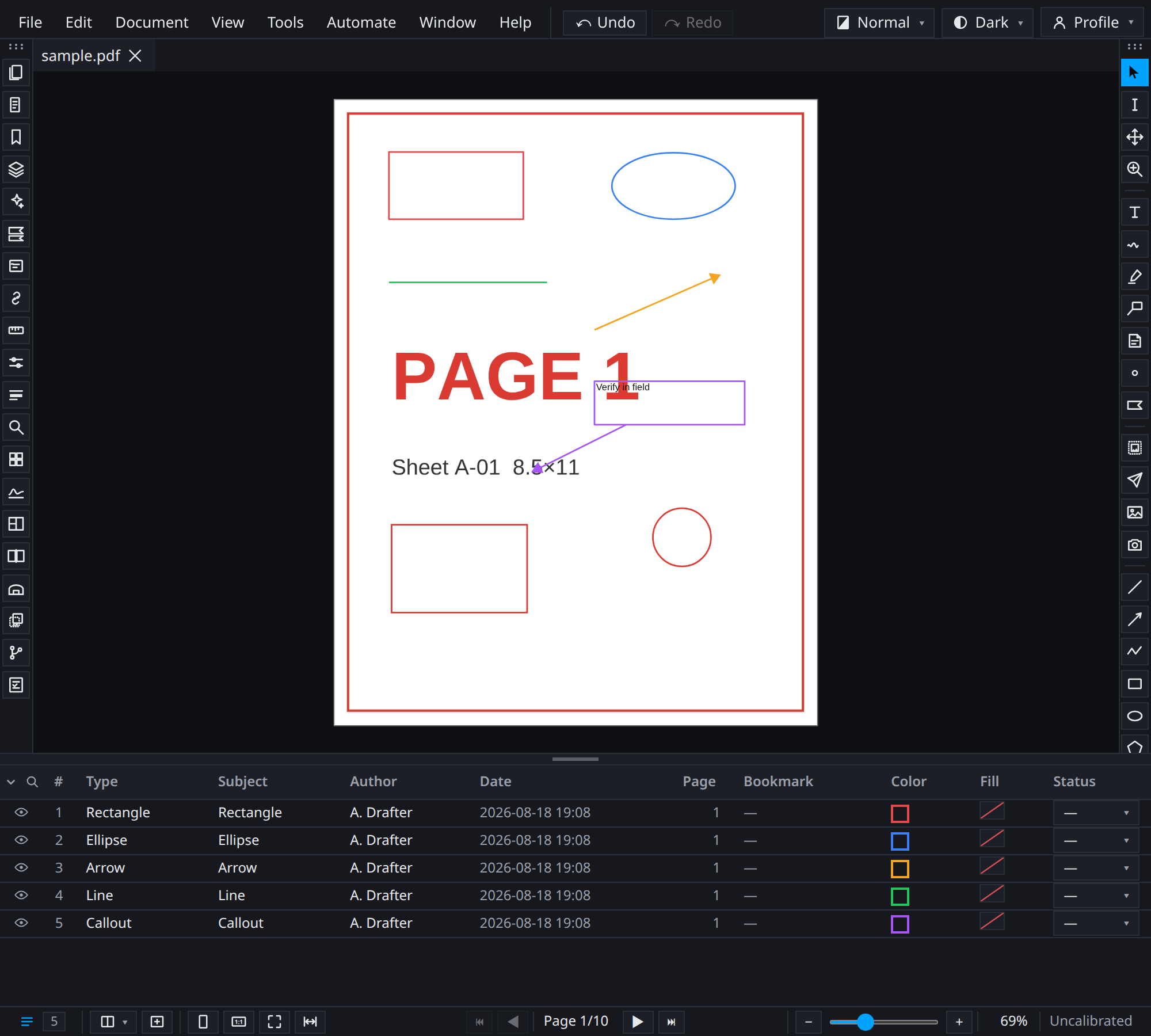
The document's own content is red here; the markups are drawn over it and stay separate from it. Nothing in that figure is baked into the page — each mark is a live object you can select, restyle, move or delete, and each leaves the document underneath untouched.
Annotate tools#
| Tool | Key | Notes |
|---|---|---|
| Text | T | Inline editor, wrapping, fit-to-text, alignment and vertical alignment, underline |
| Callout | — | A text box plus one or more leaders, with a frame shape |
| Highlight | — | Text highlighting through the PDF's text layer, and oriented boxes |
| Note | — | A sticky note with a popup |
| Dimension | — | A manual dimension with a measured label |
| Flag | — | A page flag, linked or unlinked, with its own properties and actions |
Text grows its box to fit what you type. There is one exception worth knowing: a text markup that sits inside a frame — the shape a stamp's label lives in — overflows rather than resizing, because refitting the frame would move the stamp. Grips still resize it deliberately.
Callout frames are parametric: the frame shape and its inset are stored as fractions of the text box, so the frame stays correct when the box is resized. A callout's leader is anchored at one end and clear at the other; drag the free end and the leader stretches rather than deforming the bubble.
Flags come in two forms: a linked flag jumps to a page, and an unlinked one is a marker. Both appear in the Flags panel with their actions.
Measurement tools#
Measurement tools live on Shift + letter so they stay off the bare-letter draw keys. They are documented in full in Measurement & takeoff.
| Tool | Key |
|---|---|
| Length | Shift+L |
| Area | Shift+A |
| Perimeter | Shift+P |
| Count | Shift+C |
| Multi-Length | menu |
Editing what you have drawn#
- Move — drag the markup, or nudge with the arrow keys.
- Resize — eight handles on the bounding box.
- Rotate — the rotation grip.
- Vertex editing — polylines, polygons and clouds expose per-vertex grips.
- Z-order — right-click for bring to front, send to back, bring forward, send backward.
- Properties — the Properties panel edits General, Appearance and Geometry for the current selection, including multiple selections.
- Clipboard — cut, copy, paste, and paste at cursor.
Tool defaults and saved tools#
Every tool has defaults — colour, width, fill, font — editable in Settings ▸ Tools. Beyond that:
My Tools (in the Takeoff Hanger panel) saves a styled tool: select a markup you like, add it to My Tools, and applying that entry re-activates the base tool with that style. The rail's Takeoff button re-fires the last one you used.
My Stamps (in the Stamp Collection panel) does the same for placed symbols and stamps, organized into sections.
Both survive restarts, because they are stored in your settings rather than in the document.
Layers#
Markups belong to layers. A layer can be hidden, locked, and marked do not print — and that last flag is honoured by the printer as well as by export, so a layer of internal notes stays off the paper.
Specialist tools#
These exist alongside the general markup set and are documented where they are used:
- Dynamic Fill — a paint-bucket estimator that floods a bounded region and produces an area.
- Area cutout — a subtractive polygon that removes its own area from the measurement that contains it.
- Spaces — named regions that group takeoff by room or zone.
- 3-point page registration — align a page to a known coordinate frame.
- Hyperlink — draw a rectangle whose action is a page jump, URL, or file open.